
In the second article of our 'E-learning Course Design' series, we discuss methods for effective online communication between lecturers and students. We also present specific tools available on the Kampus platform that facilitate communication and enable better workload organisation within an e-learning course.
The article covers:
- the importance of effective communication in distance learning,
- effective communication practices for e-learning courses,
- communication tools offered by the Kampus platform: the Announcements forum for teachers, student forums, the internal messaging system, and system messages.
The role of communication in an e-learning course
Uploading teaching materials and activities that reinforce or test knowledge is an important aspect of running an e-learning course, but it is not the only one. Efficient, two-way communication between the lecturer and students is also a vital element. Why are information exchange standards and methods so critical in distance learning?
Effective communication practices:
- support the learning process,
- increase student engagement,
- facilitate course organisation.
With the appropriate tools, you can effectively manage the flow of information and respond to course participants' needs in real time.
Communication in e-learning courses also serves an integrative function. It creates a space for sharing experiences, solving problems, and building interactions both between students themselves and between students and the lecturer. This is a key element that allows students to feel part of an active educational community, even though learning takes place in a remote environment.
Effective communication practices
Effective communication practices should ensure that information is shared regularly and transparently. Consistent contact between the lecturer and students provides them with the necessary support and helps clear up any doubts. It is, therefore, a good idea to use a variety of communication channels (such as an Announcements forum or the internal messaging system), which allow the format of the message to be better tailored to its content. Personalising communication is also important – addressing students or groups directly increases their engagement and enhances the sense of the lecturer's presence.
Another excellent practice is to apply the "frequent and short" rule – rather than sending long, infrequent messages, it is better to send more frequent, concise updates, especially regarding key course activities. This makes information easier to digest and minimises the risk of it being overlooked. It is also worth clearly defining expectations for students, for example, in session summaries or assignment reminders, which helps them manage their own learning process effectively.
Communication on the Kampus platform
How can you put the above principles into practice? The Kampus platform offers several useful tools for conveying and storing information regarding both academic content and organizational matters.
The Announcements Forum
The Announcements forum is the only permanent, non-deletable (though it can be hidden), and non-graded element of a course, acting as a notice board. This forum is managed by the teacher, who publishes posts with information for students. Each new post can be edited for 15 minutes after it is first uploaded to the forum. After this time, the message will be sent out to students; what is more, it will land directly in their email inboxes.
The Announcements forum can also be used to send messages to assignment groups (non-USOS groups), provided that group division has been set up in the course.
Additionally, posts can be displayed in the right-hand menu of the course (the expandable block drawer). To do this, simply add the Latest announcements block to it.
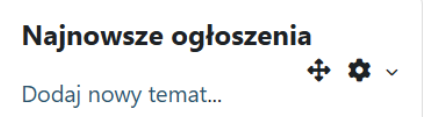
The Latest Announcements Block
Students cannot publish posts in the Announcements forum, nor can they reply to posts pinned by the teacher.
 TIP 1
TIP 1
- Systematic communication via the Announcements forum (e.g., after every class) gives students a sense of the teacher's presence in the virtual space as well.
- Each post published in the Announcements forum should have a unique title, making it easy to check whether or when a message with specific content was sent to students.
- It is good practice to send students a summary of activities and/or a reminder about homework/project/group assignment deadlines after every class.
- It is better to send shorter messages more frequently than longer messages less often. The primacy and recency effect applies here: the longer the message, the less likely it is to be read in its entirety.
TIP 2
To add a post for a specific assignment group in the Announcements forum:
- Create groups in the course and add students to them.
- Click on the forum title.
- Select the group you want to message from the drop-down list.
- Click Add a new discussion topic.
- Write the post and click Post to forum.
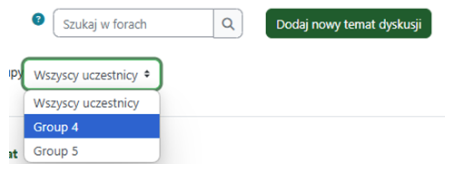
Inserting a new forum post on the Kampus platform.
TIP 3
To add the Latest Announcements block to the right-hand menu:
- Turn editing mode on.
- Open the block drawer on the left side of the screen.
- Click Add a block.
- Select Latest announcements from the list.
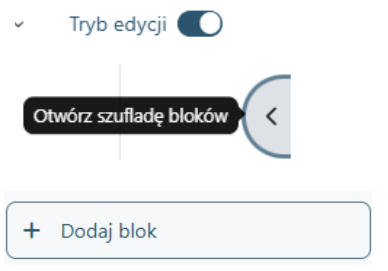
Displaying posts in the right-hand course menu.
Student Forums
To enable students to communicate with the teacher and other course participants, you need to add a FORUM activity to the course and give it an appropriate title, e.g., "Questions to the Lecturer", "Questions to the Instructor", "Student Forum", etc. In this type of forum, both students and the teacher will be able to publish posts and reply to them. Subscribing to the forum ensures that posts are forwarded to subscribers' email inboxes.
TIP 4
If you want to subscribe to a student forum:
- Click on its title.
- Click the Subscribe to this forum button.
From now on, you will receive notifications about new entries in your email inbox, without needing to check the forum manually for new posts.
Useful information on using the FORUM activity can be found in the e-Teacher’s Guide (Niezbędnik Nauczyciela).
Internal Messaging System
Course communication is significantly sped up by using the Kampus platform's internal messaging system. It is located in the top right-hand corner of the screen, next to the user's profile picture (the speech bubble icon).

The messaging icon.
Po kliknięciu na ikonę dymku, można wyszukać nazwisko odbiorcy, wpisując je w aktywne okno Szukaj i akceptując wybór kliknięciem Enter - pojawi się kontakt z pełną nazwą użytkownika.

After clicking the speech bubble icon, you can search for a recipient's name by typing it into the active Search window and confirming your choice by pressing Enter – the contact will appear with the user's full name.

The message will be delivered to the user's email inbox and will simultaneously be assigned to the private messages category.
If group division has been introduced in the course, the messaging tool will allow you to send a message to a specific group.
TIP 5
Before using the messaging system, prepare your message in full to avoid sending several separate messages. Paste the entire content into the message window and send it. The user will then receive a single email.
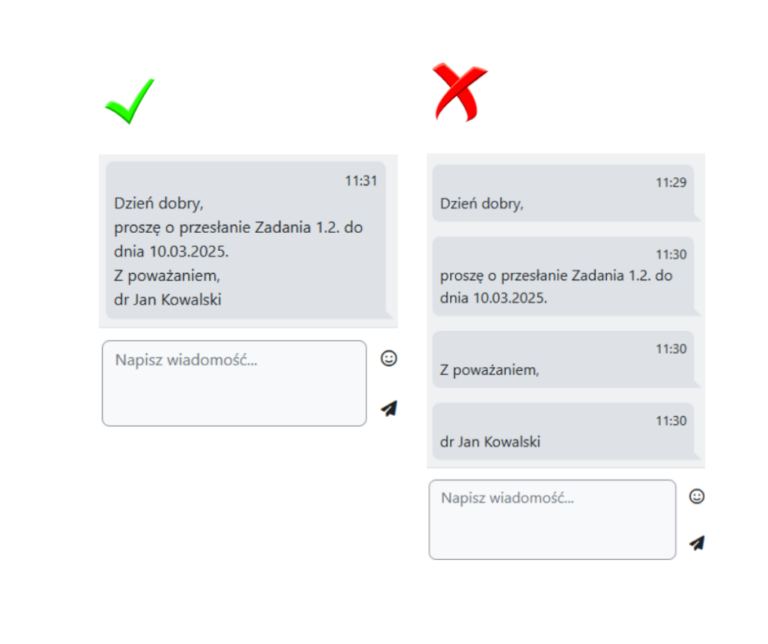
Ways to use the messaging system on the Kampus platform.
System Messages
System messages are displayed under the titles of many resources and activities if availability dates or other restrictions are configured for those items.

Examples of system messages on the Kampus platform.
TIP 6
You can set access criteria for a selected activity by defining availability dates in the Settings tab (depending on the type of activity, this will be 'Timing', 'Access', or 'Availability'), or by using the 'Restrict access' option.
NOTE: Before using the above settings, familiarise yourself thoroughly with how they function (explanations can be found in the relevant chapters of the e-Teacher’s Guide), as some settings may overlap or cancel each other out.
Quick Review
- How often do you use the Announcements forum in your course, what information do you share with students, and how frequently?
- Do you use the platform's internal messaging system?
- Do you set access criteria for activities (and, in selected cases, resources), for instance, by setting open and close dates (Assignment, Quiz, etc.)?
***
The Digital Competence Centre (CKC UW) Helpdesk invites you to:
- consult the e-Teacher’s Guide (Niezbędnik Nauczyciela),
- get in touch via email at pomoc-ckc@uw.edu.pl,
- sign up for individual or group training sessions.